
YouTube Lock - Parent Control
DelveronParenting
0.00.00 Reviews
- Version
- 2.4.0
- Installs
- 10.00K
- Age Rating
- Everyone
Screenshots
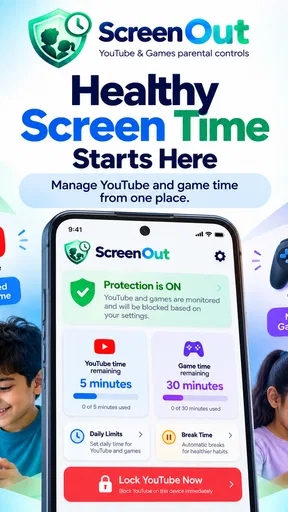
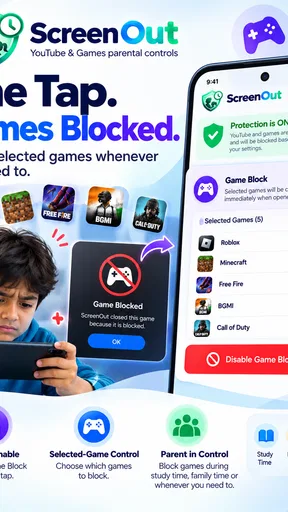
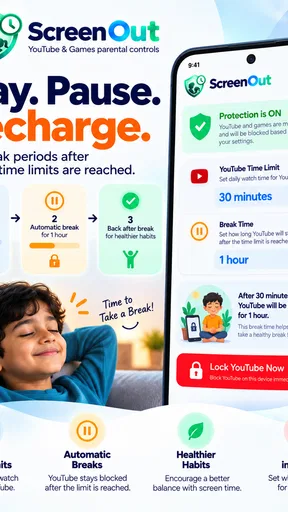
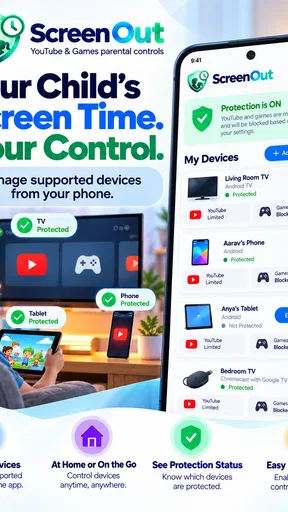
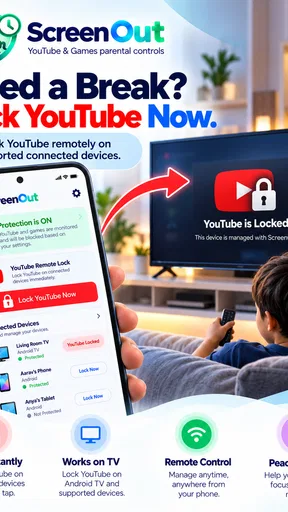
Our Review of YouTube Lock - Parent Control
 Analysis by Appyee
Parents usually do not need another app that promises to solve every screen-time problem. What they need is a clear way to make YouTube less open-ended when a child is watching alone. That is the space where YouTube Lock - Parent Control tries to help: it is a free parenting app from Delveron focused on setting limits around YouTube use rather than managing every part of a child’s device.
I approached it as a practical household tool, not as a replacement for a conversation with a child. Its purpose is narrower than a complete family-safety suite, and that is actually important. A focused YouTube control can be easier to understand than a large dashboard filled with settings that parents rarely revisit. At the same time, a narrow focus means you should be comfortable with the rest of your family’s device rules before relying on it.
The app is available to an Everyone audience and supports devices running Android 7.0 or later. It has reached over ten thousand installs, and its current version is 2.4.0. Those details do not prove that it will fit every family, but they make the basic compatibility question straightforward: if your child uses an older Android phone or tablet, check the operating system before planning around it.
What I looked for before trusting it
With a parental-control app, the most important question is not how impressive the screenshots look. I want to know what the parent can actually control, what the child can see, and whether the app encourages deliberate choices instead of hiding them behind vague promises. The store summary presents this as a tool for YouTube screen-time limits and parental controls, so I judged it by that practical standard.
The developer is Delveron, and the app is free to install. There are in-app purchases priced at $0.49 per item, which is worth keeping in mind before handing the device to a child. A small optional purchase can be reasonable, but parents should still make sure they understand when a paid item might appear and whether the free setup already covers their needs.
I also prefer to see a control app explain its boundaries honestly. YouTube Lock is not presented as a general internet filter, a school-management system, or a complete replacement for Android’s own family tools. That distinction matters. If your concern is specifically that a child keeps returning to YouTube for too long, the focused approach makes sense. If the concern includes browsers, games, messaging, app installation, and device-wide bedtime rules, you will probably need broader controls as well.
The most useful trust habit is to test the parent side before leaving the child alone with the device. Set a modest rule, watch what happens when the limit is reached, and check whether the child can understand the result without needing you to troubleshoot it in the middle of a busy evening. This kind of trial is more valuable than assuming that a control will behave exactly as its short description suggests.
Controls that matter in everyday use
The central appeal is simple: instead of asking a child to stop after “one more video,” a parent can use a defined limit for YouTube time. That changes the conversation. The child may still dislike the boundary, but the rule is less dependent on a parent remembering to check the clock or negotiate repeatedly.
For a family with a shared tablet, this can be especially useful during predictable periods. Imagine a child watching cartoons after school while you prepare dinner. You can establish the allowed window before starting, rather than trying to monitor every video while cooking. When the time is used, the device can serve as the reminder instead of turning the parent into a human timer.
Another realistic case is travel. A long car journey or a waiting-room visit often creates pressure to allow unlimited video. A YouTube-specific limit gives you a middle option: entertainment is available, but it does not quietly consume the entire afternoon. I find that more practical than banning YouTube completely when a child is tired, restless, or sharing a device with a sibling.
Parents should think about the rule as a routine, not a one-time installation. A limit that works on a school night may be too strict for a weekend trip, while a generous weekend allowance may undermine a weekday bedtime. The app becomes more useful when the adult using it is willing to review the setting as the family’s schedule changes.
Where the focused design helps—and where it stops
A dedicated YouTube control can be less intimidating than a full parental-control platform. If your only urgent problem is endless video viewing, you do not have to configure unrelated categories first. That makes the setup easier to explain to another caregiver too: “This is the rule for YouTube,” rather than a complicated list of device permissions and exceptions.
The trade-off is coverage. A child can move from YouTube to another entertainment app, a browser, or downloaded content unless those areas are managed separately. YouTube Lock should therefore be treated as one layer in a household plan, not as a universal lock for everything a child can do on Android.
This is also why I would not choose it as the only tool for a teenager who needs broader digital supervision. Older children may use several services, switch between accounts, or access media through different apps. A device-wide family-management solution may be better in that situation, even if it takes longer to configure.
For younger children who mainly use YouTube on a family tablet, the narrower scope can be an advantage. There are fewer unrelated settings to maintain, and the parent can focus on the one activity causing the most friction. The right choice depends less on the app’s category than on how concentrated your child’s screen-time problem really is.
Data-sensitive moments deserve a careful check
Any app that sits between a child and a popular video service deserves a privacy-minded setup. I would read the permission prompts and any privacy explanations shown during installation rather than approving everything automatically. The important principle is simple: only enable what you understand and genuinely need for the control to work.
I would also avoid treating a child’s device as a place to experiment with account details. Use the parent account or control path intended for the adult, keep passwords private, and do not let a child watch while you enter them. A screen-time tool is only helpful if the child cannot casually change the settings that enforce the limit.
Shared devices create another sensitive moment. If several children use the same tablet, decide whether the rule is meant for the device or for an individual child. A device-level limit can be fair when everyone follows the same schedule, but it can also create arguments if one child has a different allowance. The app may be a poor fit for households that need highly individualized profiles and do not want to manage those differences manually.
I would make the same check after an update. The current release is version 2.4.0, and updates are normal for Android apps, but a parent should still reopen the settings afterward and confirm that the visible choices match the family rule. This is not a criticism of Delveron specifically; it is a sensible habit whenever an app controls access to a child-facing service.
There is also a practical privacy boundary around notifications and lock screens. If the device displays control messages where a child can read them, those messages may reveal how the restriction works. I would review Android notification behavior and keep the parent credentials separate from the child’s everyday access. Small details like this can matter more than a polished setup screen.
Keeping the parent in charge
The strongest experience comes when the adult remains the decision-maker. I would set the rule together with the child when possible, explain what happens when the time ends, and avoid presenting the app as a punishment that appeared without warning. A visible, predictable boundary is easier for a child to accept than a sudden interruption with no explanation.
There is a useful distinction between control and convenience here. The app can reduce repeated reminders, but it cannot decide whether a particular video is suitable for your child, whether homework is finished, or whether the child is using YouTube for school. Those judgments still belong to the parent. I would use the limit to support a family agreement, not to replace supervision entirely.
One non-obvious advantage of a focused limit is that it can expose habits. If the child repeatedly reaches the boundary before bedtime, the issue may not be the exact number of minutes. It may be that YouTube is being used as a transition activity when the child is already overtired. In that case, moving the viewing period earlier could work better than constantly increasing the allowance.
Another useful workflow is to start conservatively for a few days, observe when the limit causes the most conflict, and then adjust the routine rather than immediately giving more time. This turns the app into a feedback tool. You learn whether the problem is morning distraction, after-school decompression, or late-night viewing, and you can shape the household schedule around that pattern.
Parents should also decide in advance how exceptions will work. A child may need YouTube for a tutorial, a school assignment, or a family video call. If you regularly override the rule without explaining why, the limit loses credibility. A better approach is to make exceptions deliberate and temporary, then restore the normal setting afterward. That preserves the parent’s authority without pretending every day is identical.
How it compares with the usual alternatives
Android’s built-in family and digital-wellbeing tools can be a better choice when you want to manage many apps at once. They are closer to device-wide controls, so they may suit families concerned about gaming, browsers, app downloads, and general bedtime use. The downside is that broader tools can feel excessive when YouTube is the only recurring problem.
YouTube’s own child-focused experiences may be preferable when the priority is age-appropriate discovery and a more contained viewing environment. They address what a child watches and how content is presented, while a screen-time tool addresses how long the service remains available. These are different jobs. Some families may reasonably use both rather than expecting one setting to solve content choice and duration together.
A full third-party family-management service can offer more detailed schedules, multiple child profiles, and controls across several devices. That may be worth the extra complexity for a household with older children or many devices. I would choose YouTube Lock instead when the immediate goal is narrower, the device is mainly used for YouTube, and the parent wants a lighter routine that is easier to maintain.
The important trade-off is not “simple versus powerful” in the abstract. It is whether you prefer one clear YouTube boundary or a more demanding system that covers the whole device. Choosing the larger system only makes sense if you will actually keep its settings current. An unused collection of advanced controls is less useful than one focused rule that the family understands.
Who should use it, and who should skip it
I can see this app working well for a parent managing a younger child’s Android tablet, especially when video time is the main source of arguments. It is also a sensible option for a shared household device where everyone follows roughly the same viewing routine. The free installation makes it easy to test without committing to a subscription, while the small in-app purchase price means you should still inspect the purchase flow before allowing unsupervised use.
I would be more cautious if your child needs separate allowances, detailed content approval, or controls that extend beyond YouTube. The same applies if your family uses iPhones, computers, smart televisions, and Android devices together and expects one control panel to coordinate everything. A YouTube-focused Android app is unlikely to replace a cross-platform family system in that environment.
It may also be the wrong choice for parents who want complete hands-off supervision. No screen-time limiter can judge every video, understand every family exception, or guarantee that a child will respond calmly when access ends. The app can support a boundary, but the surrounding routine still needs an adult who checks settings, protects the parent controls, and talks with the child.
My cautious verdict
My view is that YouTube Lock - Parent Control is most convincing when used for one clearly defined problem: keeping YouTube from expanding into unlimited background entertainment. Its value comes from focus. Instead of trying to govern the entire digital life of a child, it gives the parent a practical place to begin.
I would install it on a compatible Android device, test the limit with the child present, review the permission and account prompts carefully, and keep the parent controls private. I would then pair it with a conversation about when YouTube is allowed and what happens when the time ends. That combination is more dependable than relying on the app alone.
Delveron’s free parenting app is worth considering if your family needs a straightforward YouTube boundary and does not require a full device-management suite. Its limits are just as important as its strengths: it is not a complete content filter, not a universal family dashboard, and not a substitute for supervision. For the right household, though, the best feature is the clarity of a small rule that everyone can understand.
In short, I would recommend trying it for a focused YouTube routine, especially on a shared Android tablet. I would skip it in favor of broader tools when your needs involve several services, individualized child profiles, or multiple platforms. Used with realistic expectations, it can make one recurring parenting task easier without pretending to solve every screen-time challenge.
Verdict
Strengths of YouTube Lock - Parent Control
- Blocks YouTube access with a simple, focused control.
- Useful for limiting screen time on shared Android devices.
- Lightweight design keeps the app easy to navigate.
- Can reduce accidental access to unsuitable video content.
- Helpful for parents wanting a quick, no-frills restriction tool.
Limitations of YouTube Lock - Parent Control
- May require extra safeguards to prevent children bypassing the lock.
- Limited controls compared with full parental-control suites.
- Compatibility may vary across Android versions and device brands.
- Does not replace supervision or YouTube’s own content settings.
- Some features may depend on permissions that affect user privacy.
Similar Picks in This Category
View All
Family Space
Motorola Mobility LLC.3.9

شرطة الأطفال - مكالمة وهمية
Oub Apps4.1

Findmykids: Parental Control
LETEM LTD4.6

Pregnancy + | Tracker App
Philips Electronics UK Limited4.8

Policía de niños - para padres
Kids police4.7

Pregnancy App
Amila4.9
Frequently Asked Questions
What is YouTube Lock - Parent Control and how does it work?
YouTube Lock - Parent Control is designed to help parents create a more controlled viewing environment for children using YouTube. Depending on the device and version, it may restrict access to selected videos, channels, or parts of the app through a password or parental lock. Before downloading, check the app’s current feature list, supported operating system, and whether it works alongside the official YouTube application as expected.
Can children bypass YouTube Lock - Parent Control?
No parental-control application can guarantee complete protection if a child has unrestricted access to device settings, app installation, screen-time controls, or the parent’s password. During testing, the strength of the lock depends heavily on how securely the device is configured. Parents should use a private password, enable operating-system security features, restrict unauthorized installations, and regularly check the app after updates or changes to YouTube.
Does YouTube Lock - Parent Control filter inappropriate videos automatically?
YouTube Lock - Parent Control should not automatically be treated as a complete content-filtering solution. A locking tool may limit access to YouTube or selected areas, but it may not understand every video’s context, advertisement, comment, recommendation, or live-stream content. Parents should combine it with YouTube’s own supervised experience or Restricted Mode, device-level parental controls, and regular conversations about safe online viewing.
Is YouTube Lock - Parent Control free, and does it contain advertisements or in-app purchases?
Availability, pricing, advertisements, and premium features can vary by version, country, and platform. Some parental-control apps offer basic locking for free while placing advanced settings behind a subscription or one-time purchase. Before installing, review the official store listing carefully for trial terms, recurring billing, advertising behavior, and refund policies. Also confirm whether the app requires payment to remove limitations.
What permissions and privacy considerations should parents review before installing it?
Parents should inspect every permission requested by YouTube Lock - Parent Control and decide whether each one is necessary for its locking features. Depending on the operating system, the app may request accessibility, usage-access, overlay, notification, or device-administration permissions. These can be powerful, so download only from an official store, read the privacy policy, avoid sharing sensitive information, and uninstall the app if its behavior seems excessive or unclear.
